|
|
|
FLEXnet server-side installation
Note: You will need to be logged into the server with Administrator privileges to perform this installation
This application note describes a simple FLEXnet server-side installation for both the Polar Si8000m/Si9000e and for Interface Module products that incorporate the Polar Impedance Calculation engine. Where setup differences occur between these two installation procedures, information that applies to the Interface Module installation will be displayed in Interface Module information boxes (as shown below).
Full details of the FLEXnet product capabilities are contained in the the FLEXnet User Manual or on the www.flexerasoftware.com web site.
Step
1
Insert the installation disk into the CDROM drive of the server.
Navigate to the Server Side Install\Windows folder. Start
the installer via SETUP.EXE in that folder.If
you have received the files by email or download (usually in compressed
format) extract the files to a suitable folder and run SETUP.EXE from that
folder. This
will create a folder on the server which by default is: C:\ProgramFiles\FlexLm\V9.2
Step 2
Navigate to the folder created in Step 1 and run the LMTOOLS.exe program
to display the LMTOOLS dialog box.
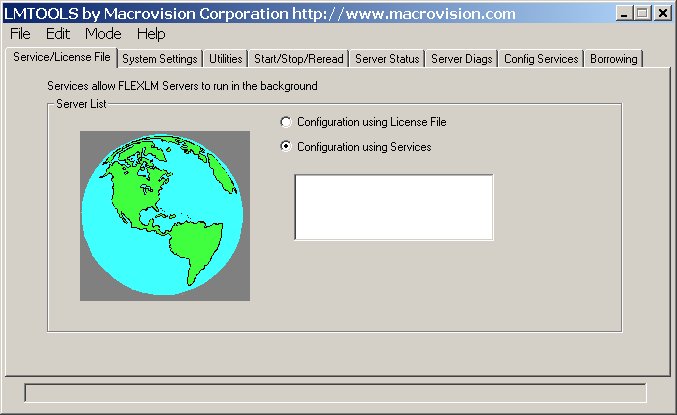
LMTOOLS dialog box
Step 3
From the dialog box select the System Settings tab.
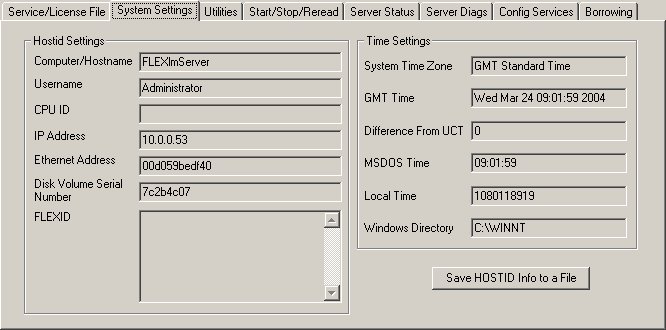
System Settings page
The System Settings page displays critical information about the selected server machine, including the Computer/Hostname and the Ethernet (MAC) address.
Where more than one Ethernet address is reported (for example, if there are multiple network interface cards installed, each serving a separate network segment) it will be necessary to select one address as license server. Note that the FLEXnet server will then only serve licenses to machines connected to the network segment associated with that address.
Click the Save HOSTID Info to a File button. Choose a location for the file and click Save. This will create a text file that you will need to email to: PolarCare@polarinstruments.com
For installations where the client nodes are specified it will be necessary to run LMTOOLS on each client machine and include each HOSTID file (which must contain the client machine ethernet address) with the email message above. The license manager will serve licenses only to the specified nodes.
Note: Please also include within the email the Company Name that you would like associated with the licence file. Failure to do this will result in a delay in issuing the licence. Once Polar Instruments has received and processed this information you will be returned a custom licence file by email.
Note: Until the custom licence file is correctly installed on the server machine the software cannot be used. The custom licence file is ‘tied’ to the nominated server machine and cannot be used on any other server.
Interface Module information
If you are installing an Interface Module product that incorporates the Polar Calculation Engine you need to indicate this when you send the
HOSTID file contents to
PolarCare.
Step 4
Once you have received your custom licence file from Polar Instruments
copy it to the same folder that currently contains LMTOOLS.exe.
Select the Config Services tab
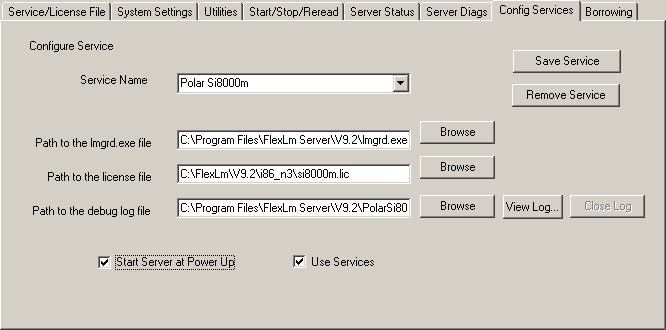
Config Services tab
In the Service Name dropdown enter the service name:
In this example we install the Polar Si8000m so enter Polar Si8000m as the service name.
Use the three Browse buttons to select the lmgrd.exe file, the Si8000m.lic file and the Polar Si8000m.log file.
Interface Module information
In the case of an Si8000m Interface Module installation the above file names are amended to:
Service Name – Polar SI8000mOEM
lmgrd.exe – no change
Si8000m.lic – SI8000mOEM.lic
Si8000m.log – SI8000mOEM.log
Select the Use Services and Start Server at Power Up checkboxes.
Before leaving this page select the Save Service button to store these settings.
Step 5
Select
the Start/Stop/Reread tab
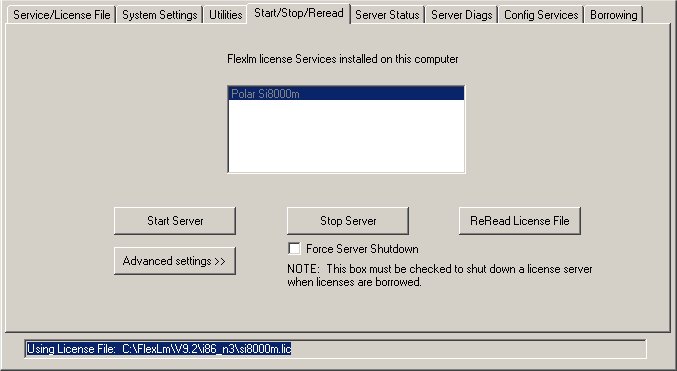
Start/Stop/Reread tab
Select the Start Server button; this should be the only time that you are required to do this as this service will be now be run at the time of server start up.
Step 6
Select the Service/Licence File tab
This should now show the service listed (for example, Polar SI8000m Service.)
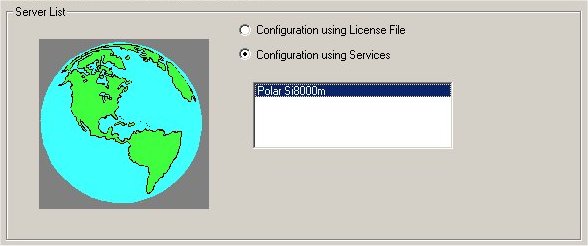
This completes the server side installation; please refer to the FLEXnet User Manual for additional information.
Note: If a Microsoft Windows XP SP2 machine is to be used as the server it will be necessary to add the FLEXnet License Manager program LMGRD.EXE and Polar vendor daemon POLAR.EXE to the Windows XP Firewall Exceptions list.
Start Control Panel, Choose Windows Security Center | Windows Firewall | Exceptions | Programs and Services.
Click Add Program...and browse to each program file; change the scope as required.
Activating the FLEXnet client
Before activating a FLEXnet client ensure:
All client node ethernet addresses have been included on the license.
The FLEXnet licensing files is installed and running on a locally accessible server. The server must be running to manage licensing.
To install the client software run the SETUP.EXE program from the CDROM root folder or the downloaded file. If you have received the files by email or download (usually in compressed format) extract the files to a suitable folder and run SETUP.EXE from that folder. Follow the on-screen instructions to complete the installation.
Start the program by double-clicking the associated desktop icon.
The FLEXnet License finder asks for the name of the License Server or License File when the program is first run (or when the first calculation is performed).
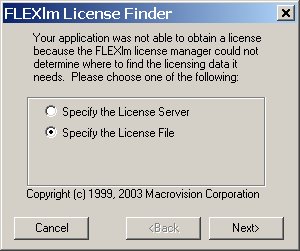
Ensure the Specify the License File option is selected and press Next.
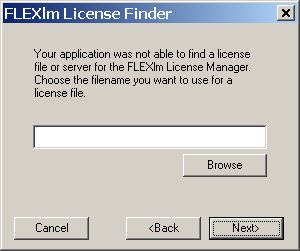
Enter the name of the License Server (or click the Browse button and navigate to the machine and folder containing the license file) and press Next.The software will perform calculations within the terms of the license purchased.