|
|
|
|
|
|
Transferring controlled impedance parameters between Speedstack and the Si8000m/Si9000e field solvers
Application Note AP179
|
|
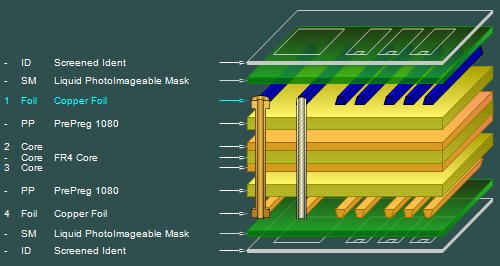
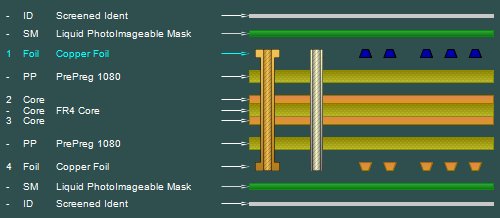
Speedstack incorporates the facility to add controlled impedance structures to a layer in the stackup. Speedstack is integrated with the Polar Instruments Si8000m and Si9000e Field Solvers so controlled impedance values for a structure may be calculated at the click of a button. Structure parameters may be copied to the Quick Solver for processing (for example by the Si8000m/Si9000e Goal Seeking function) and calculated values pasted back to Speedstack for insertion into the stackup. This application note outlines the process of exchanging controlled impedance parameters between Speedstack and the Si8000m to add a controlled impedance structure with the correct impedance value to a stackup layer. 1. Start both Speedstack and the Si8000m applications. 2. Select Speedstack and open a sample stackup. 3. Select (click on) an electrical layer – e.g. Layer 1.
(Hint — its easier to do this if you select 2d view from the icon on the toolbar first).
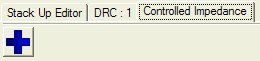
4. Select the controlled impedance tab (note the blue plus sign appears).
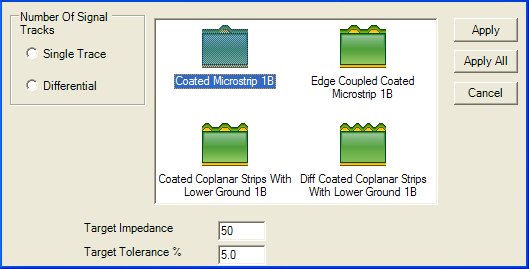
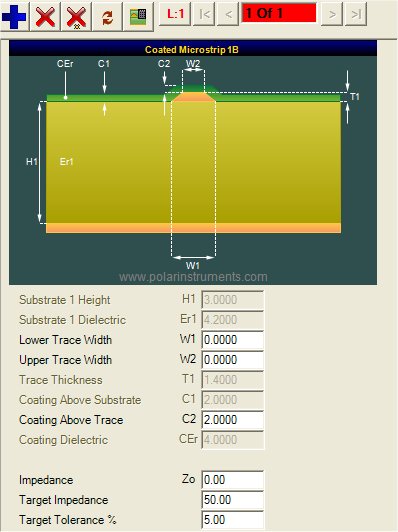
5. Add a structure – for this example, a coated microstrip .
Note the copy and paste icons (for exchanging parameters with the field solvers) on the right of the Speedstack toolbar.
6. Set a target impedance in the box at the bottom of the Controlled Impedance section (in this case 50 Ohms).
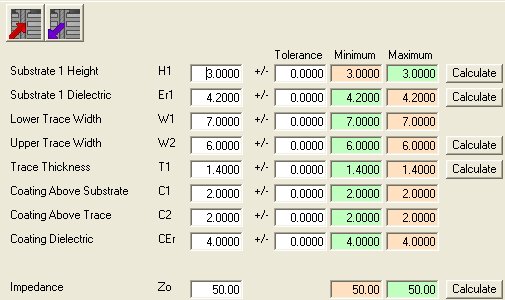
7. Add parameter values for Trace Width, etc. as required. 8. Use the To Field Solver icon to paste to the Si8000m Clipboard (left hand icon with red arrow) 9. Select the Si8000m Application. 10. Use the (right hand) Paste From Speedstack button to paste the controlled impedance parameters from Speedstack
11. Goal seek for line width... (Click the Lower Trace Width button — if you cannot meet target you need to go back and adjust the stackup). 12. Copy the parameters back to Speedstack using the Copy to Speedstack button and switch back to Speedstack... where you can paste the information (From Field Solver) back into the stack. 13. With the Si8000m parameters returned to Speedstack select the Rebuild and Calculate all Structures button to recalculate the current structure. |