|
|
|
|
|
|
Installing server and client license software for Polar software: Note for a more detailed overview see AP618.html
Application Note AP606
|
|
This video and application note describe a typical server side install for a Polar FlexNet Publisher based floating license server.
Can't view the video? Click here If you would prefer to have Polar run the installation for you, contact polarcare to arrange a time to install and test your license server. |
|
Note: You will need to be logged into the server with Administrator privileges to perform this installation. Please read this note before installing. Upgrading from earlier versions If you are upgrading from an earlier version of Polar's server-side installation to a later version it will be necessary to perform the following steps:
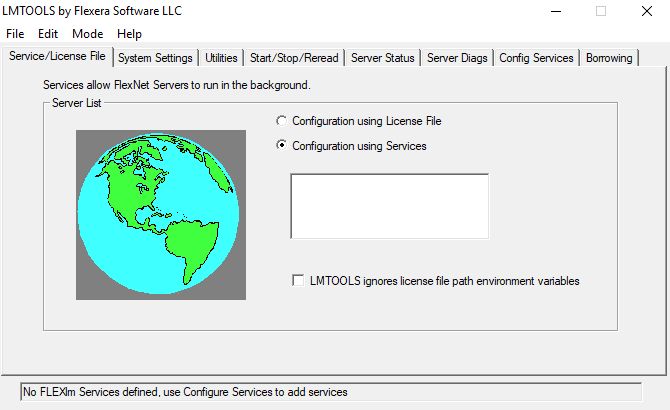
FlexNet server-side installation Full details of the FlexNet product capabilities are contained in the the FlexNet Publisher License Administration Guide or on the Flexera Software web site. Step 1 Download the server side installation file from the Polar web site downloads page. Extract the installation files to a suitable folder and run SETUP.EXE from that folder. This will create a folder on the server for the FlexNet license manager, Polar daemon and license file which, for a default installation, is: C:\ProgramFiles (x86)\FlexLm\V11.19.0 Note: If you choose a different file location (for example, for a custom installation) do not use the name POLAR for any of the folders within the installation folder structure – it will conflict with the name of the Polar vendor daemon (POLAR.EXE) and prevent the license manager from serving licenses. When the POLAR daemon is launched it creates a temporary file called POLAR to prevent itself from launching more than once; creating a folder with the same name as the temporary file will cause it to abort its own launch. Step 2 Navigate to the folder created in Step 1 and run the LMTOOLS.exe program to display the LMTOOLS dialog box.
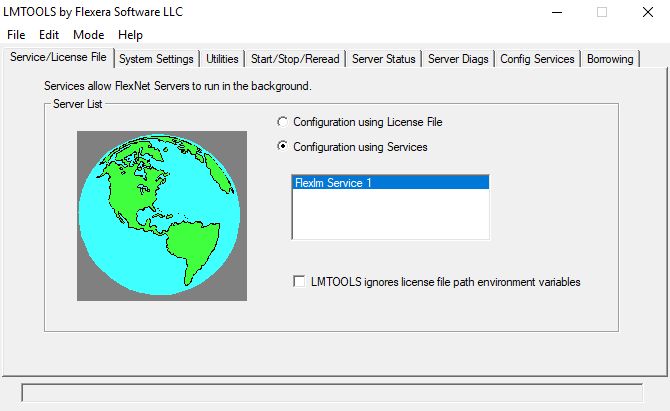
LMTOOLS dialog box Step 3 From the dialog box select the System Settings tab.
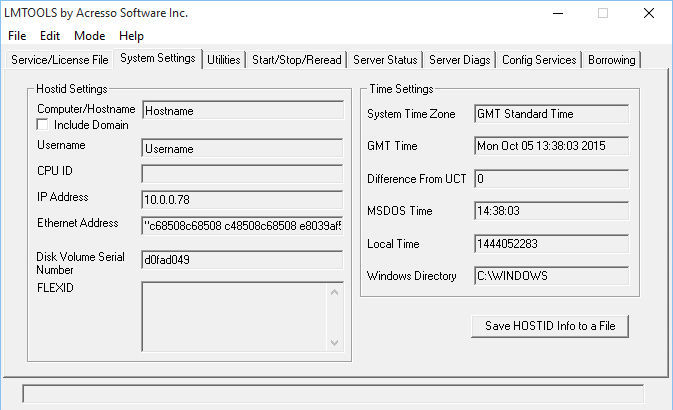
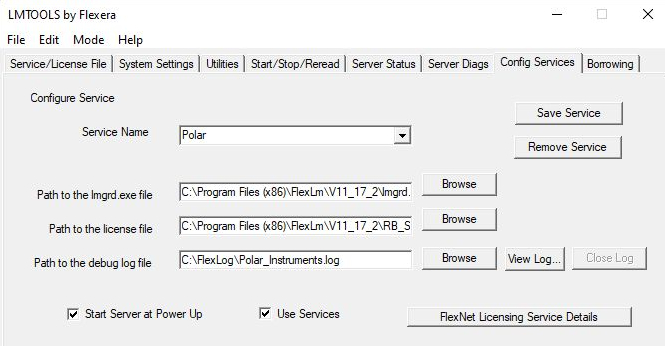
System Settings page The System Settings page The System Settings page displays critical information about the selected server machine, including the Computer/Hostname and the Ethernet (MAC) address. Where more than one Ethernet address is reported (for example, if there are multiple network interface cards installed, each serving a separate network segment) it will be necessary to select one address as license server. Note that the FlexNet server will then only serve licenses to machines connected to the network segment associated with that address. Click the Save HOSTID Info to a File button. Choose a location for the file and click Save. This will create a text file that you will need to email to: PolarCare@polarinstruments.com For installations where the client nodes are specified it will be necessary to run LMTOOLS on each client machine and include each HOSTID file (which must contain the client machine ethernet address) with the email message above. The license manager will serve licenses only to the specified nodes. Note: Please also include within the email the Company Name that you would like associated with the license file. Failure to do this will result in a delay in issuing the license. Once Polar Instruments has received and processed this information you will be returned a license file by email. Note: Until the Polar generated license file is correctly installed on the server machine the software cannot be used. The license file is locked to the nominated server and cannot be used on any other server. Step 4 Once you have received your license file from Polar Instruments copy it to the same folder that currently contains LMTOOLS.exe. Select the Config Services tab Note: specifying a log file location On the latest versions of FlexNet Publisher the service account is used for security purposes, so if you perform a standard server side installation using the Program Files folder there may be restrictions on writing to the log files. It is recommended that the log file is installed in a public folder – alternatively, create a folder with appropriate read/write access outside the Program Files folder structure (e.g. C:\FlexLog as shown below). Move the Polar_Instruments.log file from the installation folder to the log file folder.
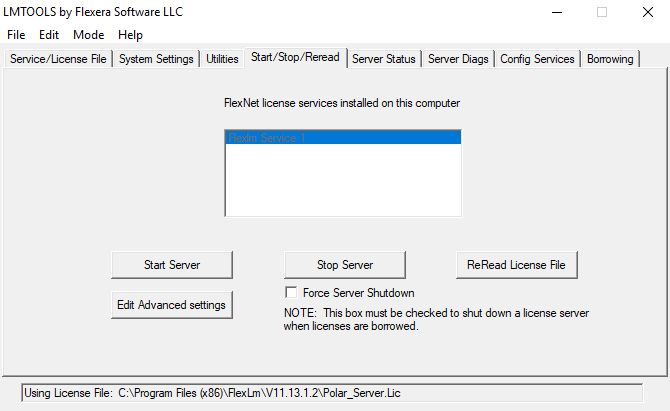
Config Services The Config Services page In the Service Name dropdown enter the Service Name: Use the three Browse buttons to select the lmgrd.exe file, the license file and the Polar Instruments log file. Configuring the Service to reference the new paths Note: If you are upgrading the server from an earlier version of FlexNet Publisher, ensure the Config Service settings are changed to the new paths to the lmgrd.exe file, the license file and the log file. Select the Use Services and Start Server at Power Up checkboxes. Before leaving this page select the Save Service button to store these settings. Step 5 Select the Start/Stop/Reread tab
Start/Stop/Reread
Step 6 Select the Service/License File tab – this should now show the service listed.
This completes the server side installation; please refer to the FLEXnet User Manual for additional information. Allowing the license server programs to communicate through the Windows Firewalls Note: If machines using Microsoft Windows XP SP2 or later are used as license servers it will be necessary to add the FlexNet License Manager program lmgrd.exe and Polar vendor daemon polar.exe to the Windows XP Firewall Exceptions list, the Windows 7 Allowed Programs list or the Windows 8/10 Allowed apps and features list. It will be necessary to allow programs through both client and server firewalls. Configuring the Windows Firewalls to reference the new paths Note: If you are upgrading the server from an earlier version of FlexNet Publisher, ensure both Windows Server and client firewall settings are changed to the new paths to the lmgrd.exe file and the Polar vendor daemon Polar.exe Windows XP SP2 (Please note: Windows XP no longer supported by FlexNet Publisher) Start Control Panel, Choose Windows Security Center | Windows Firewall | Exceptions | Programs and Services.Click Add Program...and browse to each program file; change the scope as required. Windows 7 Start Control Panel|Windows Firewall (supply password if necessary) and choose Allow a program or feature through Windows Firewall. Click Allow another program... At the Add a Program dialog click Browse and navigate to the folder containing lmgrd.exe and polar.exe (by default, C:\Program Files\FlexLm\V11.19.0 on 32-bit systems or C:\Program Files (x86)\FlexLm\V11.19.0 on 64-bit systems.) For each program (lmgrd.exe and polar.exe) select the file and click Open; both files should appear in the Allowed Programs list Home/Work(Private) (as lmgrd.exe and Polar Demon respectively.) Windows 8/10 Start Control Panel|Windows Firewall (supply password if necessary) and choose Allow an app or feature through Windows Firewall. Click the Change Settings button the Allow another app… button At the Add an app dialog click Browse and navigate to the folder containing lmgrd.exe and polar.exe (by default, C:\Program Files\FlexLm\V11.19.0 on 32-bit systems or C:\Program Files (x86)\FlexLm\V11.19.0 on 64-bit systems.) For each program (lmgrd.exe and polar.exe) select the file and click Open; both files should appear in the Allowed apps and features list (Private) (as lmgrd.exe and Polar Demon respectively.) Activating the FLEXnet client Before activating a FLEXnet client ensure:
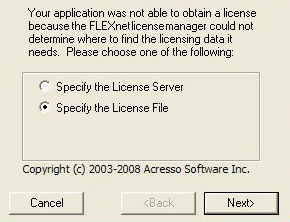
** Note: If the license server is accessed from a remote location it may be necessary to set each client's FLEXLM_TIMEOUT environmental variable to allow sufficient time for the client machine to contact the server. By default, software based on FlexNet Publisher times out in 0.1 seconds (100000 microseconds) – set the FLEXLM_TIMEOUT environmental variable (in microseconds) to a value of 3000000. If necessary, increase the timeout value in increments of 1000000 until a license is obtained (acceptable values range from 0 – 2,147,483,647 microseconds.) To install the client software run the SETUP.EXE program from the software installation file downloaded from Polar. Follow the on-screen instructions to complete the installation. Start the program by double-clicking the associated desktop icon. The FLEXnet License finder asks for the name of the License Server or License File when the program is first run (or when the first calculation is performed).
Specify the License Server or the License File and press Next.
Enter the name of the License Server (or click the Browse button and navigate to the machine and folder containing the license file) and press Next.The software will perform calculations within the terms of the license purchased. |