|
|
|
|
|
|
Resetting the Polar FlexNet (FLEXlm) Licence Path
Application Note AP610
|
|
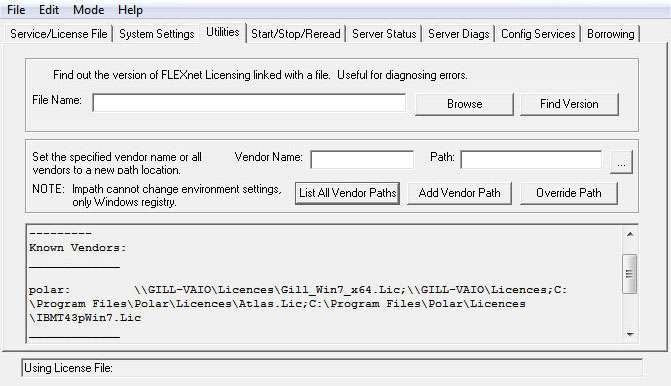
Resetting the FlexNet license path It may be necessary on occasions (for example, when renewing FlexNet licenses) to reset the license settings in the registry to clear old or invalid license paths. Navigate to where you have installed the Polar licence folder (the default path is C:\Program Files\Polar\Licences.) Open lmtools and select the Utilities tab. Click on list all Vendor paths. This will list the current license path for the Polar license file.
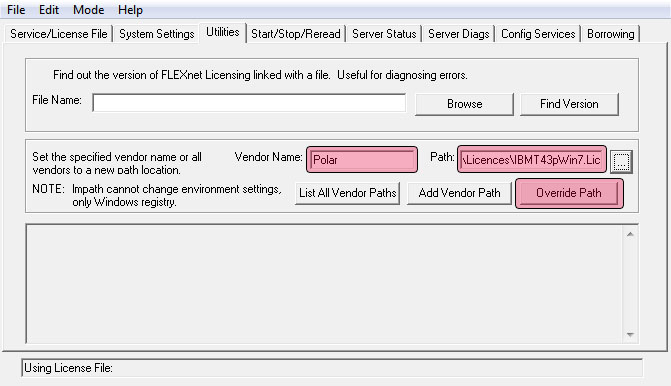
Type the name Polar in the Vendor Name field and browse to the new license file or type in the server path For example, 27000@(your server name) or, if no port is allocated, @(your server name)
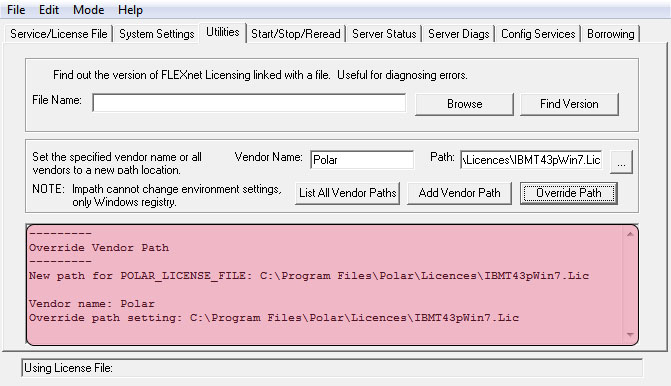
Select the Override Path button to update the license path and overwrite the old path (below)
For a floating license it may be necessary to perform a license reread (Start/Stop/Reread tab.) Restart the software to check the new license settings. Resetting the license path on 64-bit systems At installation Microsoft Windows 64-bit versions create two program files folders, \Program Files and \Program Files(x86). 64-bit Windows redirects the \Program Files folder for all programs that are 32-bit during the installation to the \Program Files(x86) folder. 64-bit programs are installed into the \Program Files folder. When installing on a 64-bit Windows operating system, therefore, Polar software (for example Si8000m, Si9000e, Speedstack, CGen) installs in the Program Files (x86)\Polar folder so the license will be located by default in Program Files (x86)\Polar\Licences. |