|
|
|
|
|
|
Setting up network communication between Polar Atlas and the Tektronix DSA8300 sampling oscilloscope
Application Note AP611
|
|
Polar's Atlas GHz Test System Polar's Atlas GHz Test System is designed to acquire data from the Tektronix DSA8300 with 80E04 plug-in using the TekVISA connectivity software — TekVISA is the Tektronix implementation of VISA, an industry-standard communication protocol. TekVISA must be installed and running on the DSA8300 and the host PC in order to communicate data and applications between the instrument and the PC. TekVISA provides network access to the DSA8300 by including VXI-11 client and server software components. The VXI-11 LAN Server is installed on the DSA8300 as part of the TekVISA software installation. The VXI-11 LAN Client is included as a VISA instrument resource type on the client/host PC with TekVISA software installed. The VXI-11 Server on the DSA8300 must be enabled. Locate the blue and gray icon in Windows Desktop taskbar (lower right-hand corner). If the icon has a red circle with a slash through it, then right click on the Icon, and select Start VXI-11 Server. NOTE. To start VXI-11 Server automatically next time the scope is powered on then select Server Properties, and Check Start server automatically at system power up. The Atlas – TekVISA – DSA8300 system communicates via Windows networking using TCP/IP over Ethernet and can be set up using the standard Windows networking dialogs. Network settings (IP addresses, subnet masks, workgroup names, etc.) are normally assigned to the controlling PC and Tek TDR under the supervision of the company/workshop network adminstrator. Configuring the DSA8300 On many systems the network settings will be set by the local network DHCP server and will not be visible in the dialogs below – in this case, open a command prompt (choose Start| Run... and type cmd in the Run box). At the command prompt type ipconfig and note the IP address setting for the Local Area Connection:
If the address is not automatically assigned, the DSA8300 will need to be set manually. From its Control Panel choose Network and Sharing Center, click the Ethernet Connection, in the Ethernet Status window click Properties.
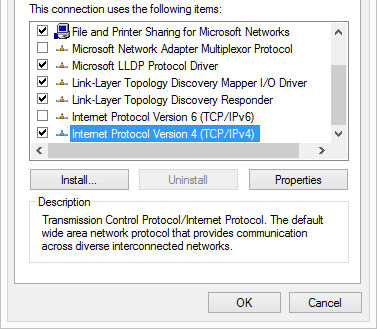
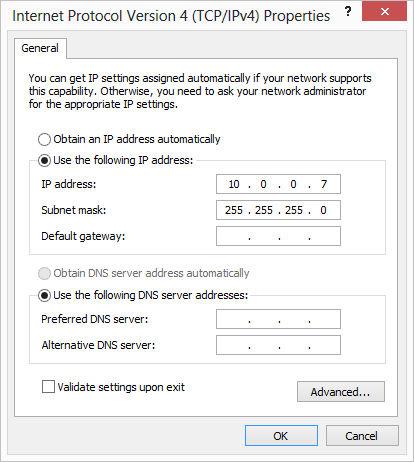
Choose Internet Protocol Version 4 (TCP/IPv4) and choose Properties - click the Use the following IP address option:
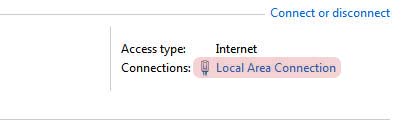
Specify the IP address and subnet mask (10.0.0.7 in the example above.) The first three octets of the IP address (containing 10.0.0) should match those of the host PC; note the fourth octet (the final 7) – you will need to set the host PC to an adjacent address (e.g. 10.0.0.15) and the subnet mask to 255.255.255.0 – leave the other settings blank. Close the dialogs. (For this note we use the example address above – your actual address will reflect the local network settings.) Close all dialogs. Setting up the workgroup From Control Panel choose System and select the Computer Name tab; click Change... and ensure the Workgroup option is selected; note the workgroup name – it will be necessary to ensure the DSA8300 and the host PC share the same workgroup name. Note: Changing the computer or workgroup name will require a system restart. This action must be performed on both the DSA8300 and the controlling PC. Configuring the host PC The dialogs in this procedure will vary with operating system; these reflect the process for Windows 7 but are similar to those of Windows XP. Windows 7 From Control Panel, choose Network and Sharing Centre and click Local Area Connection:
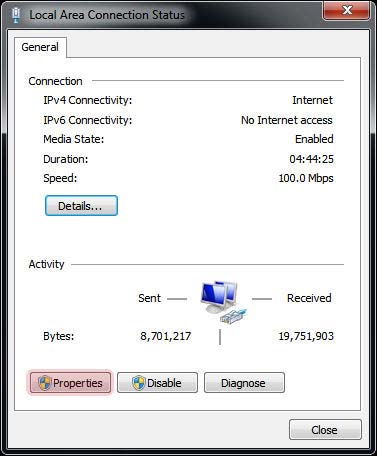
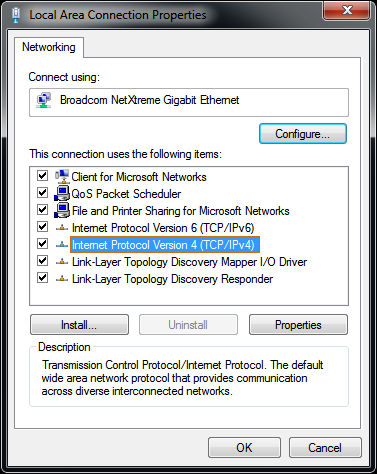
The local area connection status is displayed – choose Properties:
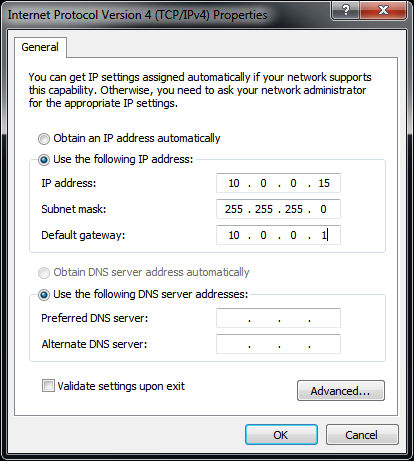
Choose the IP Protocol Version 4 and click Properties:
Specify the IP Address and subnet mask as assigned by the network administrator – the most important settings are shown below as an example; other settings should be filled in as assigned by the administrator.
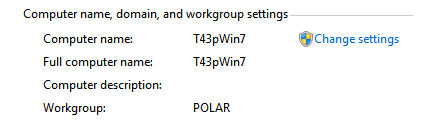
Note that the IP address and subnet masks should relate to those of the TDR. Windows XP The dialogs for Windows XP network settings are similar: from the Windows XP Control Panel choose Network Connections, right click the Local Area Connection entry and choose Properties, choose Internet Protocol (TCP/IP) and click Properties; set the IP address and subnet mask as described above. Changing the workgroup name From the Windows 7 Control Panel choose System and click Change settings:
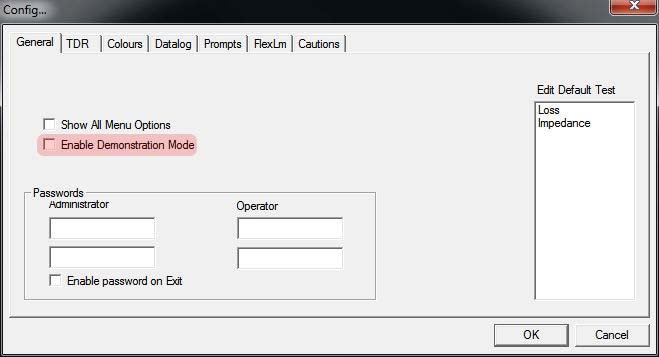
From the System Properties tab click Change... and ensure the computer is joined to the same workgroup as the DSA8300 (rename the workgroup and restart the machine if necessary.) Note: it may be necessary to alter the settings of the Windows 7 or Windows XP firewall to allow communication between the host PC and the DSA8300. Configuring Atlas To apply the network settings, start Atlas and from the Utilities menu choose Config...and the General tab:
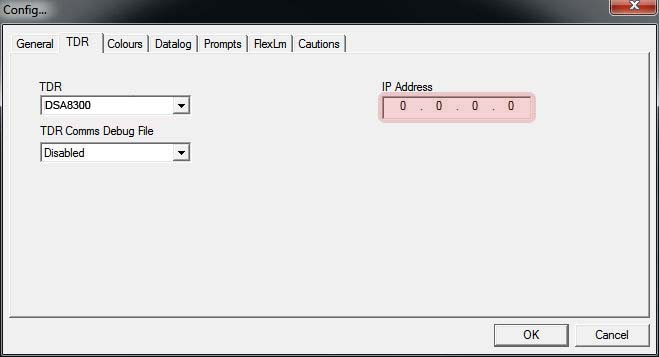
Ensure Enable Demonstration Mode is unchecked. Select the TDR tab:
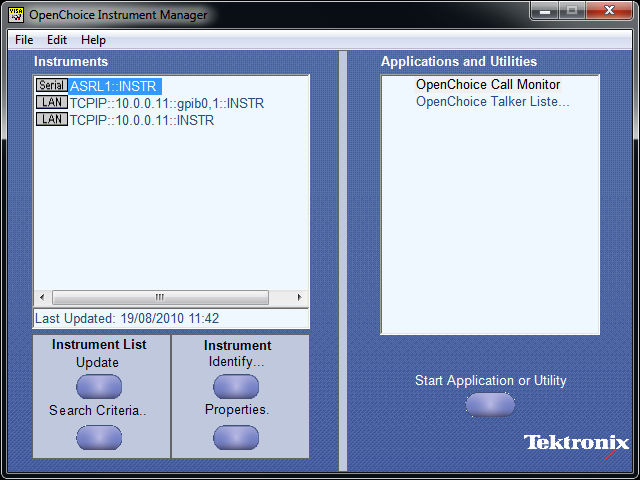
Atlas is shipped with the TDR IP address set to 0.0.0.0; this must be changed to the actual adddress of the TDR. (The IP address of the TDR may be confirmed from its network settings dialogs as shown above.) Enter the IP address of the TDR assigned by the network administrator. It will look like 10.0.0.11 (or 192.168.0.8 or similar.) Updating the TekVISA Instrument List When both addresses have been assigned, start the TekVISA Resource Manager and Update the Instrument List. You should see the TDR reporting its IP address as shown below.
To verify connection, using the Atlas software, create and run a sample test file and check Atlas returns data. |