|
|
|
|
|
|
Track Resistance Calculator TRC Plus – calculating the resistance of printed circuit board tracks
|
|
|
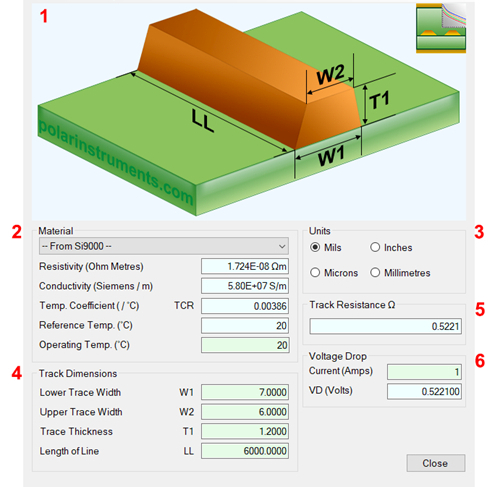
Making the calculation easy The TRC Plus dialog box can read in the current structure values from the field solver or allow entry of material type, track shape and length; the Track Resistance Calculator returns a result in Ohms for the specified trace. TRC Plus considers temperatures and Temperature Coefficient of Resistance. The sections of the dialog are described below.
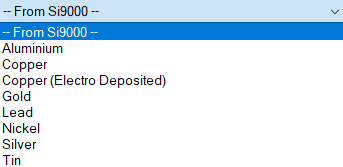
1. Interactive track material image. Clicking on a track parameter label will highlight the associated Track Dimension field (text box). Enter data into the active field. Double-clicking anywhere on the image will bring up the Materials Editor. 2. Material selection and properties Select the material via the drop-down list.
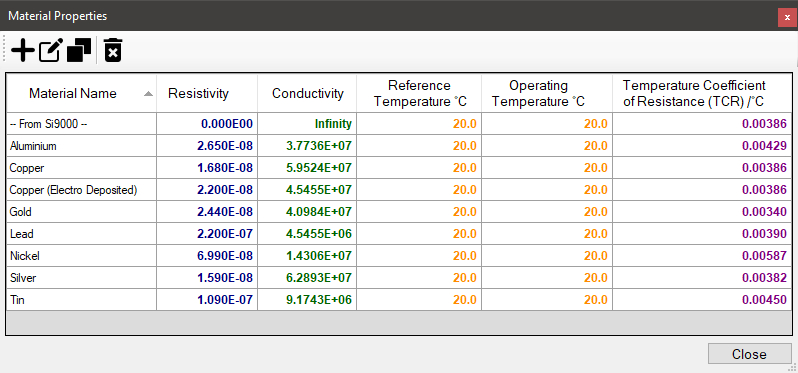
Fields coloured in light-blue are not directly editable but the field values can be in the Materials Editor. Fields coloured in light-green are editable by the user. For example, Operating Temperature will determine a material’s resistivity at that temperature, which in turn will be applied in calculating the track resistance. 3. Units Switch to your preferred units by clicking the associated option button – imperial units include Mils (Thou) and Inches; for metric units choose Microns (Micrometres) or Millimetres. 4. Track or trace dimensions Enter or change track dimensions in the Track Dimensions in the chosen units. 5. Resistance result Calculation of the track resistance. The result should update immediately upon any changes to the editable (light-green) fields. 6. Voltage Drop calculation result The calculated Voltage Drop is displayed in the VD (Volts) text box. Using the Material Properties Editor The Material Properties Editor is the source of the list of materials found in the drop-down list, above, on the main application window. Click Tools|Edit Materials to open the Material Properties Editor.
Use the Toolbar buttons to add, edit, duplicate and delete materials as needed.
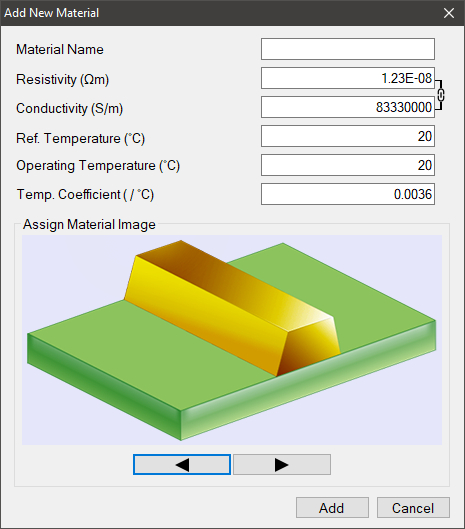
Adding new materials Click the Add Material button to open the Add New Material dialog.
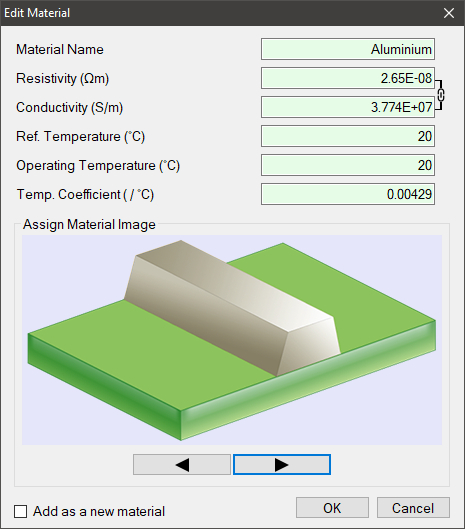
Supply the material name and the values for other parameters in their associated fields; note that the Resistivity and Conductivity fields are interactively linked. Step through the range of material images and choose an image to assign to the new material; click Add – the material will appear in the material properties list. Editing materials Select a material and click Edit to modify the material parameters: the Edit Materials dialog is displayed.
Change the values in the parameter text boxes to reflect the material values and click OK. Click the Add as new material checkbox to add the modified material as a new material. Duplicating materials Materials currently in the list can serve as "templates" for new materials. Select an existing material and click the Duplicate button – the material is copied to the list: the duplicated material can then be edited to reflect the new description and values. Deleting materials Use the Delete Selected Material button to remove a material from the list. |
 Add Material
 Edit Selected Material
 Duplicate Selected Material
 Delete Selected Material