|
|
|
|
|
|
Returning multiple parameters from a single formula in SiExcel
|
|
|
Return multiple parameters from a single formula in SiExcel with Dynamic Array Functions The Si8000m / Si9000e interface returns the impedance Z0 for the specified structure parameters, dielectric height, trace width, trace thickness, etc.
Until version 26.02 of SiExcel, access to these additional parameters required a fresh function call for each individual value – and on more complex structures this takes significant processing time. From SiExcel v26.02 onwards all this data can be returned with a single call to the solver by using Microsoft Excel's Dynamic Array Functions. Dynamic Array Functions in Microsoft Excel Dynamic Array Functions are a set of tools in Microsoft Excel that automatically return multiple values into a range of cells based on a single formula (traditional functions only return a single value to a single cell.) With dynamic arrays, when a formula is entered that returns multiple values, Excel intelligently “spills” these values into adjacent cells, dynamically resizing the output range to accommodate all the results. Array Formulas in SiExcel SiExcel makes use of Microsoft Excel’s Array Formulas to request multiple result parameters and return them as an array which will populate additional columns to the right of the formula cell, returning multiple parameters from a single formula
Dynamic array formulas, whether using existing functions or dynamic array functions, only need to be entered into a single cell, and then confirmed by pressing Enter. Array formulas in earlier versions of Microsoft Excel Note: Array formulas in earlier versions of Microsoft Excel required:
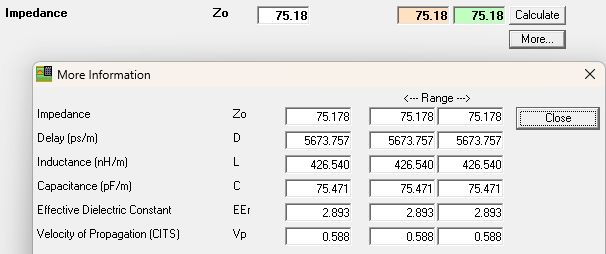
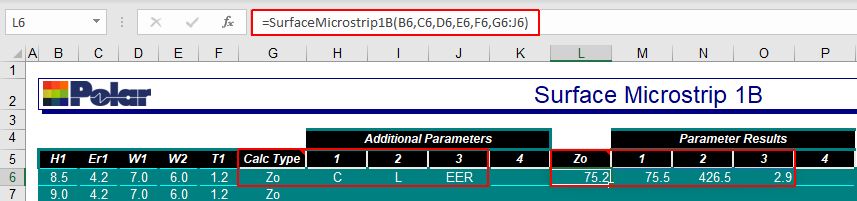
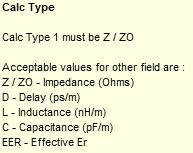
These legacy array formulas are commonly referred to as CSE (Ctrl+Shift+Enter) formulas, so in earlier versions of Excel it is necessary to highlight the range of cells to receive the results prior to entering the formula and pressing Ctrl+Shift+Enter (CSE).This will produce curly brackets {} around the formula, by which Excel recognises an array formula. Note – the curly brackets {} cannot be entered manually, they must be produced by pressing CTRL+SHIFT+ENTER. Array formulas in later versions of Microsoft Excel Later Excel versions supporting array formulas natively do not require the use of CSE when entering the formula, so in the above example there are no curly brackets surrounding the formula. The requested formula range is 4 columns (G6:J6) so 4 columns are selected to hold the results prior to entering Enter to complete the calculation. As shown above, the formula for Surface Microstrip 1B includes a range of cells (G6:J6) for the Calculation Type. These are designated Additional Parameters 1, 2, 3, 4. These can be assigned the Calc Types of Impedance, Z0, Delay, D, Capacitance, C, Inductance, L and Effective Dielectric Constant, EEr respectively (parameters displayed by the More… button in the Si8000m interface example above.) Pausing a mouse over the Calc Type cell displays the list of acceptable calculation types that can be specified in the Additional Parameters cells.
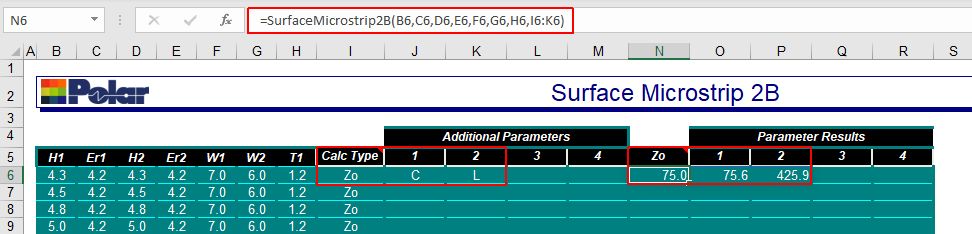
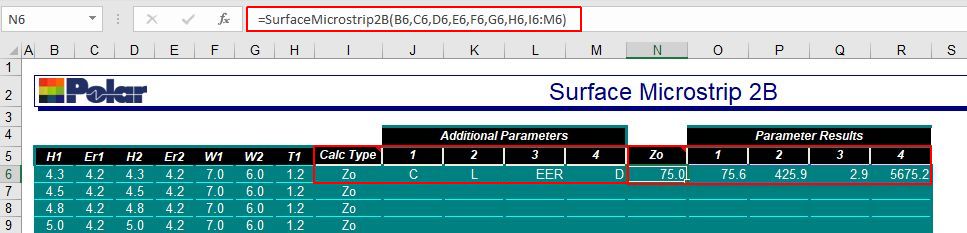
As this formula contains a range as opposed to a single value for the Calc Type it will be treated as an array formula and the results will be returned to multiple cells to the right of the formula cell (L6:O6 in the above example) designated Parameter Results 1, 2, 3, 4, corresponding to the Additional Parameters 1, 2, 3, 4. In later versions of Excel, if Excel is unable to return the results to the results cells (if, for example, they already contain data or are protected cells) Excel will return a result of “#Spill!”. In this case, delete any data in the cells to the right of the formula cell and rerun the calculation. Adding parameters The Surface Microstrip 2B example below includes results for Impedance, Z0, Capacitance, C and Inductance, L
To add other parameters, for example, Effective Dielectric, EEr and Delay, D:
The new parameters Effective Dielectric, EER and Delay, D are displayed in Parameter Results 3 and 4. Upgrading from SiExcel v26.01 is “plug and play” and SiExcel sheets written for v26.01 will work as normal, but also allow extending for use to deploy dynamic arrays. If you are moving from SiExcel v25.xx or earlier you will first need to update your spreadsheet to be compatible with v26.01 (instructions in Application Note AP8211 – Updating a custom SiExcelExpert Linked Spreadsheet.) |
|